
You’re tapping “connect,” and your headphones stutter like a DJ with bad Wi-Fi. If you’ve ever cursed a frozen track or a dropped call, you’ve wondered what causes Bluetooth interference and why it picks the worst moments to act up. Let’s gossip about the usual suspects and serve up quick fixes you can use today. 🎧⚡
What causes Bluetooth interference: the usual suspects
Bluetooth operates in the crowded 2.4 GHz band, the same frequency used by Wi-Fi, baby monitors, microwaves, and a surprising number of other gadgets in your apartment. When too many devices chatter at once, signals collide, and packets are lost. That’s classic Bluetooth interference.
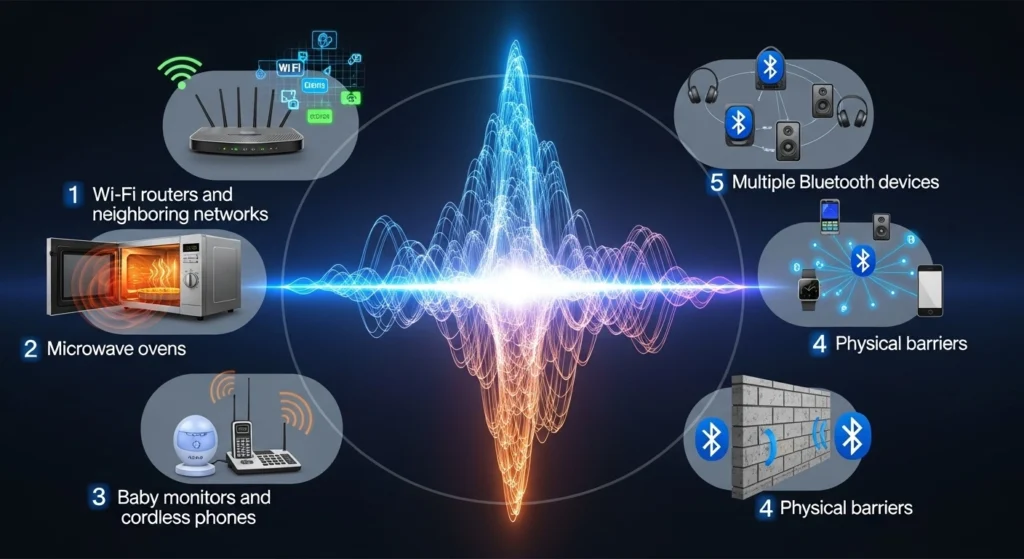
Other culprits include:
- Wi-Fi routers and neighboring networks are broadcasting on overlapping channels.
- Microwave ovens (they make noise when running).
- Baby monitors and cordless phones use similar frequencies.
- Physical barriers like brick walls, metal appliances, or even your body between the devices.
- Multiple Bluetooth devices in the same room competing for airtime (think a smartwatch, earbuds, a keyboard, and a speaker all trying to be social).
READ MORE: Why do smart home devices lose connectivity, and how to stop the drama 😅🏠
How device behavior makes interference worse
Bluetooth is designed to be resilient; it hops frequencies and retries lost packets. But cheap devices, outdated firmware, or long-range Bluetooth versions can make things worse. If your gadget hasn’t had a firmware update in years, it might not play nicely in a noisy RF (radio frequency) environment.⚡
Quick, practical fixes you can try right now
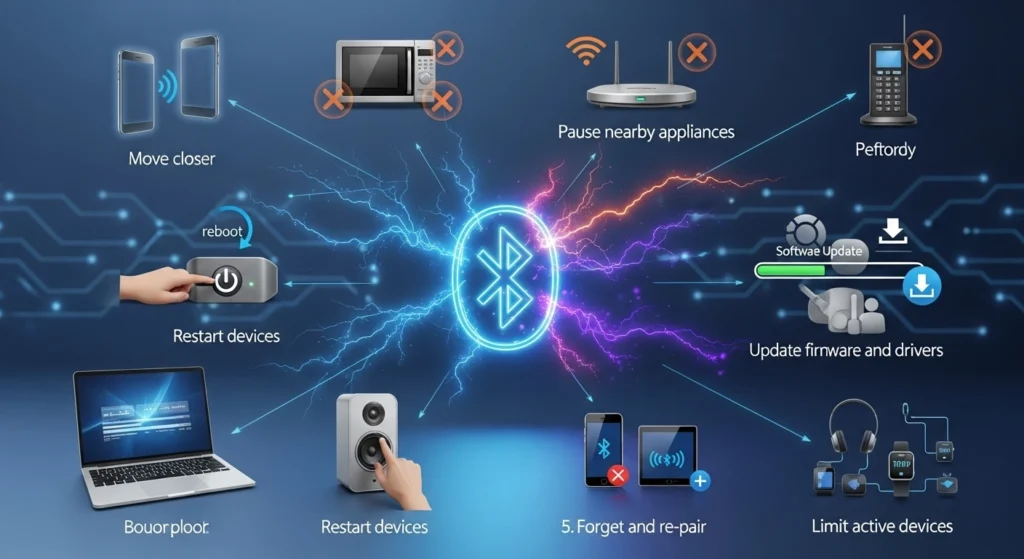
- Move closer: It sounds simple because it is. Reducing distance lowers the chance of interference.
- Pause nearby appliances: If your audio glitches when the microwave runs, now you know why.
- Restart devices: Reboot your headphones, phone, or speaker. Fresh connections can choose a better channel.
- Update firmware and drivers: Manufacturers often release fixes for connectivity issues.
- Change Wi-Fi channels: Switch your router to a 5 GHz band if supported; it reduces 2.4 GHz congestion.
- Forget and re-pair: Remove the device from Bluetooth settings, then pair again to clear stale settings.
- Limit active devices: Turn off unused Bluetooth gadgets in the room. Less chatter = clearer audio.
READ MORE: Apple AirPods Pro 3: Big Insider Details on the 2025 Update 🎧
When to dig deeper and what to do
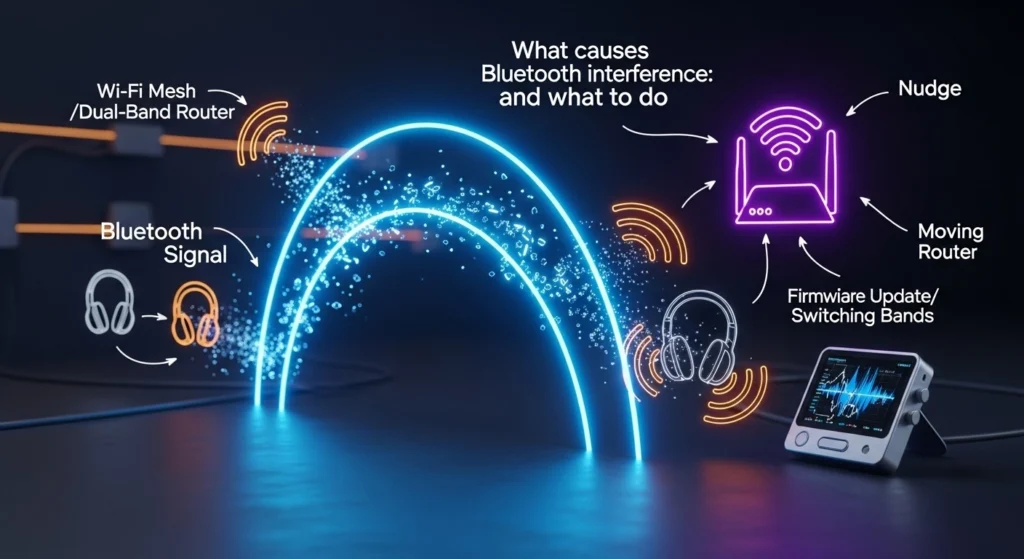
If you still hear pops or slumps after the basics, try testing other headphones or another phone to pinpoint the problem. For persistent home-network noise, a Wi-Fi mesh or a dual-band router that keeps traffic off 2.4 GHz can be a game-changer. For workplaces or complex setups, an RF analyzer (or a savvy IT person) can map the interference sources.
Bluetooth is sneaky but fixable. Most interruptions come from overcrowded signals or simple distance and can be solved without buying new gear. With a few nudges, moving a router, updating firmware, or switching bands, your audio will stop acting like a drama queen and just work. 🎶
READ MORE: Top Smart Home Devices for Better Sleep: 5 Simple Tech That Actually Helps😴✨


x6us1s
The vibe here is just great. Tons of fun options and the community is pretty active. I am having a blast at 777betfunlogin
Really impressed with the security and speed of bitpkrgame. Everything feels professional and the gaming experience is top notch. Definitely my new go-to site.
If you are looking for a spot with good odds and a wide selection of slots, this is it. Had a great time on win988game last weekend!